Home Assistant on Raspberry Pi: 7 Easy Steps to Set It Up
Setting up Home Assistant on Raspberry Pi takes seven steps: pick a Pi 4 or 5, flash Home Assistant OS with Raspberry Pi Imager, boot with Ethernet and open the dashboard. This IoT Insights Hub guide to Home Assistant on Raspberry Pi also shows when the ready-made Green hub is the smarter choice.
Home Assistant on Raspberry Pi: 7 Easy Steps to Set It Up
Running Home Assistant on Raspberry Pi is one of the cheapest ways to build a smart-home hub that you own. You flash one image, plug in a cable and open a web page. No cloud account is needed to get the dashboard running.
This guide from IoT Insights Hub follows Home Assistant’s own installation pages, step by step, and says where each fact comes from. It also covers the question most beginners hit next: whether a Raspberry Pi or the ready-made Green hub is the smarter buy.
New to connected homes? Our guide to IoT in smart homes explains what you are building toward, and the beginner guide to IoT covers the basics.
What do you need to run Home Assistant on Raspberry Pi?
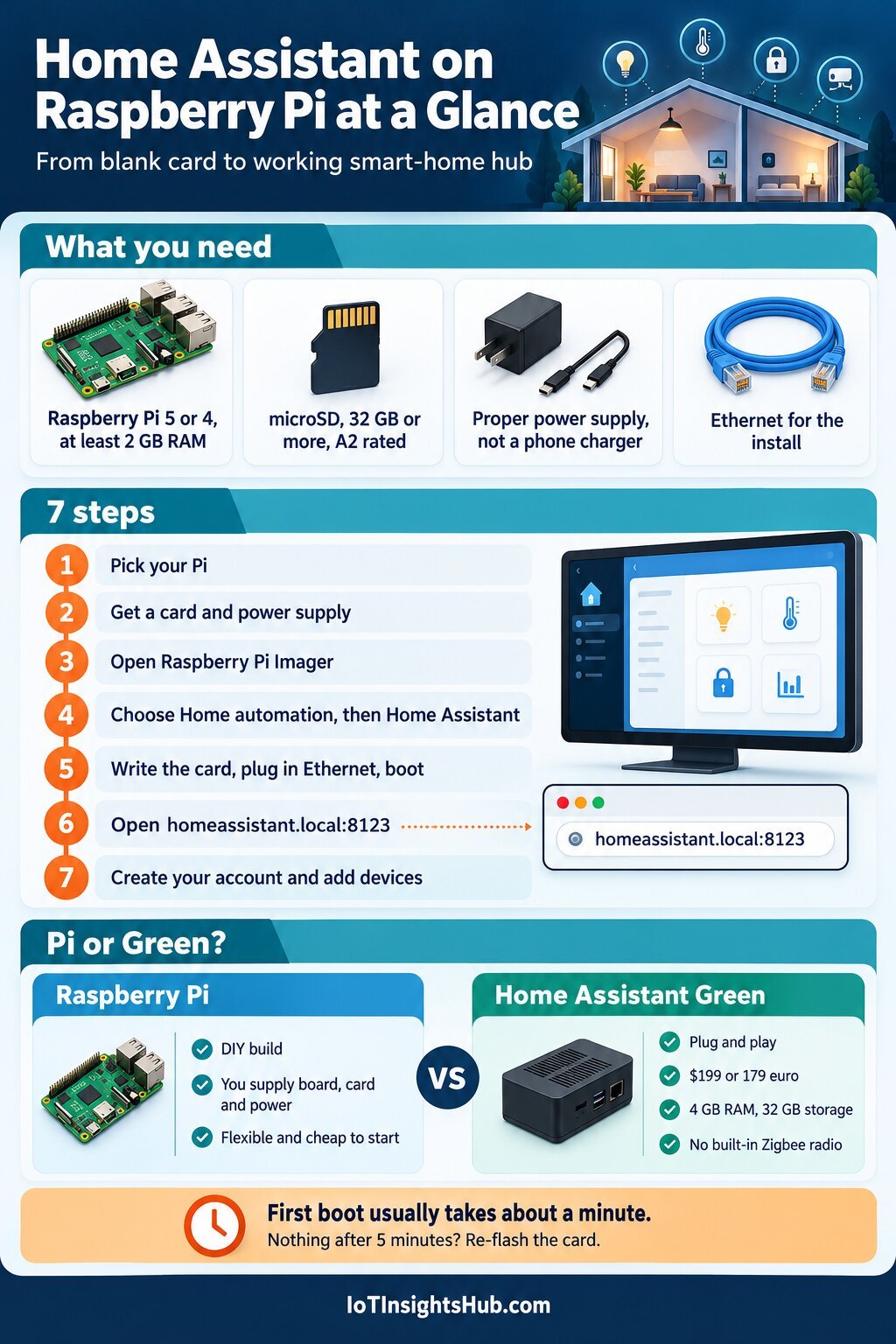
You need a Raspberry Pi 5 or Pi 4 with at least 2 GB of RAM, a microSD card of 32 GB or more (Application Class 2 preferred), an appropriate power supply and an Ethernet cable. A computer with Raspberry Pi Imager writes the card. Home Assistant’s docs list the same parts.
That is the whole shopping list. Here is what each item does, per Home Assistant’s Raspberry Pi installation page.
| Part | What Home Assistant says | Why it matters |
|---|---|---|
| Raspberry Pi | Raspberry Pi 5 or Raspberry Pi 4, with at least 2 GB of RAM | The board that runs the hub |
| microSD card | At least 32 GB, ideally Application Class 2 (A2) | A2 cards perform better on small reads and writes |
| Power supply | An appropriate supply. Mobile chargers may not suit, and computer USB ports must not be used | Weak power is a common cause of odd behaviour (IoT Insights Hub’s view) |
| Ethernet cable | Required for installation. Wi-Fi works afterwards, but Ethernet is more reliable | Gets the first boot onto your network |
| A computer | Runs Raspberry Pi Imager, which overwrites the card | Writes Home Assistant OS to the card |
In IoT Insights Hub’s view, 2 GB is the floor, not the target. If the price gap to a 4 GB board is small, buy the bigger one, because the hub only gets busier as you add devices.
Not sure how your devices will talk to the hub? Our guide to IoT protocols from MQTT to Zigbee on IoT Mail Bridge lays out the options.
How do you set up Home Assistant on Raspberry Pi in 7 steps?
Pick a Pi 5 or Pi 4, get a 32 GB A2 card and proper power, open Raspberry Pi Imager, choose Other specific-purpose OS, then Home automation, then Home Assistant. Write the card, boot the Pi with Ethernet, open the dashboard in a browser and create your account.
These seven steps follow Home Assistant’s installation guide. The step names are ours, and the details come from its Raspberry Pi page.
- Pick your Pi. Home Assistant recommends a Raspberry Pi 5 or Raspberry Pi 4 with at least 2 GB of RAM. In IoT Insights Hub’s view, buy the larger memory option if the price gap is small.
- Get a card and a power supply. Use a microSD card of at least 32 GB, ideally Application Class 2 (A2). Use an appropriate power supply, not a mobile charger or a computer USB port, per Home Assistant.
- Open Raspberry Pi Imager. Install Raspberry Pi Imager on your computer from raspberrypi.com/software, open it and select OS. Home Assistant’s guide starts here.
- Choose Home automation, then Home Assistant. Pick Other specific-purpose OS, then Home automation, then Home Assistant. Select the image for your board, RPi 4 or RPi 5, and choose your inserted card as the storage. Its contents will be overwritten.
- Write the card and boot with Ethernet. Select Next, then Write, wait for it to finish, then Finish and eject the card. Put it in the Pi, connect Ethernet to your network and power it on. Ethernet is required for installation.
- Open homeassistant.local:8123. On a computer on the same network, open http://homeassistant.local. If that fails, try homeassistant.local:8123. Home Assistant says the page should appear within a minute on a Pi 4 or 5.
- Create your account and add devices. Follow the on-screen setup to create your account, then add devices one at a time. Start small, with one light or plug, and build from there.
Notice how little there is to it. No command line, no Linux install, no package manager. Home Assistant Operating System arrives as a ready-made image, so Raspberry Pi Imager does the heavy lifting.
How do you open Home Assistant at homeassistant.local:8123?
Open a browser on the same network and try http://homeassistant.local first. If that fails, try homeassistant.local:8123, homeassistant:8123 or http://X.X.X.X:8123, replacing the X values with the Pi’s IP address. Home Assistant says the page should appear within a minute on a Pi 4 or 5.
Per Home Assistant’s guide, the main address is http://homeassistant.local. The alternatives matter when that name does not resolve, for example on older Windows setups or stricter networks, or when port 80 is already in use.
| Address to try | When to use it |
|---|---|
| http://homeassistant.local | The first thing to try |
| http://homeassistant | Older Windows or stricter networks |
| http://X.X.X.X | When you know the Pi’s IP address from your router |
| homeassistant.local:8123, homeassistant:8123 or http://X.X.X.X:8123 | When no port works, or port 80 is in use, for example with a reverse proxy |
What if nothing shows up? Home Assistant says that if the dashboard has not appeared after 5 minutes on a Pi 4 or 5, the image may not have been written properly. Rewrite the card, and try a different card if needed.
Still stuck? Connect a monitor over HDMI to read the console output, as the docs suggest. If Raspberry Pi Imager does not support your computer, the docs say you can download the image and write it with another tool such as Balena Etcher.
Which Home Assistant install type should you choose?
Choose Home Assistant Operating System. Home Assistant calls it the recommended install type for most users and the most convenient for installation and maintenance. It supports apps. Container installs run on a system you manage, update by hand, have no apps, and lack out-of-the-box Thread and Z-Wave support.
| Install type | Who it suits | Trade-offs (per Home Assistant) |
|---|---|---|
| Home Assistant Operating System | Most users, including anyone following this guide | Recommended, supports apps, most convenient to install and maintain |
| Home Assistant Container | People who already run their own system and want to manage it | You handle updates manually, no apps, no out-of-the-box Thread or Z-Wave support |
The Home Assistant installation page we read describes these two types. Other methods exist, but we did not verify them for this guide, so check the official docs before choosing one.
For a first build, the choice is easy. The image in step 4 is Home Assistant Operating System, and it keeps the hub as an appliance you set up once and leave alone.
Should you use a Raspberry Pi or Home Assistant Green?
Use a Raspberry Pi if you want to pick the parts and learn how the hub works. Use Home Assistant Green if you want to plug in power and network and start. Green costs $199 or €179 and has no built-in Zigbee radio, so Zigbee needs the separate Connect ZBT-2.
Green is Home Assistant’s own ready-made hub. Per its product page, it runs a Rockchip RK3566 quad-core Arm Cortex-A55 at 1.8 GHz, with 4 GB of LPDDR4X memory and 32 GB of eMMC storage.
| Factor | Raspberry Pi 5 or 4 | Home Assistant Green |
|---|---|---|
| Price | Board, card and power supply bought separately. Prices vary | $199 or €179 recommended price |
| Setup | Write the card yourself in Raspberry Pi Imager | Plug in power and network cables, then follow the app |
| Memory | At least 2 GB of RAM | 4 GB LPDDR4X |
| Storage | microSD, 32 GB or more, A2 preferred | 32 GB eMMC |
| Power supply | You choose an appropriate one | Included, 12 V DC 1 A |
| Zigbee | Needs a USB radio (IoT Insights Hub’s view) | Not built in. Use the Connect ZBT-2 |
| Thread | Needs compatible hardware | Via the ZBT-2. Support is still under development |
The ports are modest. Green has two USB 2.0 Type-A ports, Gigabit Ethernet, an HDMI port for diagnostics only and a microSD slot for recovery only. Home Assistant says an internet connection is required for the initial setup.
A word on Home Assistant Yellow: Home Assistant lists it with a built-in Zigbee radio and room for an NVMe SSD. We have not tested it, so treat it as a pointer, not a recommendation.
In IoT Insights Hub’s view, the Pi wins on flexibility and learning, and Green wins on time. If you would rather not troubleshoot a card or a charger, Green removes those variables.
What should you do after your first login?
Create your account, then add the devices you already own and plan how new ones will connect. Wi-Fi devices may appear on their own, since Home Assistant says it starts detecting smart home devices after setup. Zigbee, Thread and Z-Wave need the right radio hardware before they work.
Start small. One light, one plug, one sensor. Get an automation working before you buy more kit.
- Zigbee gear needs a radio. Our explainer on what Zigbee is and how it works shows why a mesh of battery sensors suits a home.
- Custom sensors often talk MQTT. Read what MQTT is before you wire up your own.
- Bluetooth devices are a separate family. See what Bluetooth Low Energy is for how they behave.
- Keep the hub off the open internet unless you know what you are doing. Our guide to IoT security risks and how to fix them explains why. That is IoT Insights Hub’s view, not a Home Assistant instruction.
Want your home to tell you when something is wrong? IoT Mail Bridge explains how to set up IoT email automation the right way, and its piece on how IoT home automation works shows the moving parts behind a hub like this.
Planning to keep data local and send only what matters? See IoT Mail Bridge on edge to cloud data security for IoT fleets. The scale is bigger than a home, but the habits carry over.
A note for makers who want to turn a hobby into a business: The Business Perspective follows the money. Its Q3 2026 venture funding analysis and its list of AI startups that raised funding show where investors are looking, and its guide to raising seed funding covers the first cheque.
What do critics say about a Raspberry Pi smart-home hub?
Critics point to hidden costs and fragility: you buy and match several parts, Ethernet is required to install, a poor power supply or weak card causes trouble, and there is a learning curve. Supporters answer that a Pi gives control, low entry cost and a hub you can fix yourself.
- Parts add up: a Pi needs a board, card and power supply, while Green includes its supply. Prices change, so check current listings before you decide.
- Ethernet first: Home Assistant says Ethernet is required for installation, which surprises people planning a Wi-Fi-only setup.
- Power and storage: Home Assistant warns that mobile chargers may not suit and computer USB ports must not be used, and it asks for a decent A2 card. IoT Insights Hub’s view: cheap cards and chargers are where DIY hubs most often go wrong.
- Card wear and backups: a microSD card is a weak point on any always-on board. In IoT Insights Hub’s view, keep a backup of your setup somewhere else.
- The learning curve: setup takes a few steps, but good automations take time. That is IoT Insights Hub’s observation, not a Home Assistant claim.
- Radios are extra: neither Green nor a plain Pi has built-in Zigbee, so budget for a radio if you want one.
- Container limits: if you pick Container to save effort, you lose apps and out-of-the-box Thread and Z-Wave support, per Home Assistant.
Supporters have a fair reply. A Pi is cheap to start, easy to replace and teaches you how the system fits together. If a card dies, you reflash it and restore your setup, which is much harder to do with a sealed box.
In IoT Insights Hub’s view, both camps are right. Choose by temperament. If you enjoy tinkering, a Pi is a pleasure, and if you just want lights to work, Green is the calmer route.
Home Assistant Raspberry Pi FAQs
Can you run Home Assistant on a Raspberry Pi?
Yes. Home Assistant’s own guide recommends a Raspberry Pi 5 or Raspberry Pi 4 with at least 2 GB of RAM, a microSD card of 32 GB or more (A2 class preferred) and an appropriate power supply. The recommended install type is Home Assistant Operating System, written to the card with Raspberry Pi Imager.
What is homeassistant.local:8123?
It is an address for reaching your Home Assistant dashboard from a browser on the same network. The guide lists http://homeassistant.local first, then homeassistant.local:8123, homeassistant:8123 or http://X.X.X.X:8123 as alternatives, including when port 80 is already in use, for example behind a reverse proxy.
Which Raspberry Pi is best for Home Assistant?
Home Assistant recommends the Raspberry Pi 5 or Raspberry Pi 4, with at least 2 GB of RAM. The page we read does not rank the two. IoT Insights Hub’s view is that the Pi 5 is the natural pick if you are buying new and the price gap is small, but either meets the documented requirement.
Can you use Wi-Fi instead of Ethernet for Home Assistant?
Not for the install. Home Assistant says Ethernet is required for installation. Afterwards Home Assistant can work with Wi-Fi, but Ethernet is described as more reliable and highly recommended. Plan to plug in a cable for the first boot and keep it connected if the hub runs anything important.
How long does Home Assistant take to start on a Raspberry Pi?
Home Assistant says the dashboard should be available within a minute on a Raspberry Pi 4 or 5, and within a few minutes of connecting the Pi. If nothing appears after 5 minutes, the image may not have been written properly. Rewrite the card, try another card, or connect a monitor over HDMI.
Is Home Assistant Green better than a Raspberry Pi?
It depends on how much you want to build. Green costs $199 or €179 at the recommended price, includes a power supply and sets up by plugging in power and network. A Pi suits people who like choosing parts. Green has no built-in Zigbee radio, so Zigbee needs the Connect ZBT-2.
Sources behind this Home Assistant on Raspberry Pi guide from IoT Insights Hub
- Home Assistant documentation, “Raspberry Pi” installation page, home-assistant.io/installation/raspberrypi (recommended models, RAM, card size and class, power supply, Raspberry Pi Imager steps, Ethernet and Wi-Fi, first-boot timing, addresses, troubleshooting)
- Home Assistant documentation, “Installation” overview, home-assistant.io/installation (Home Assistant Operating System and Container install types, apps, manual updates, Thread and Z-Wave support)
- Home Assistant, Home Assistant Green product page, home-assistant.io/green (price, processor, memory, storage, ports, power supply, Zigbee and Thread notes, setup steps)
Is Home Assistant on Raspberry Pi worth setting up?
Yes, if you want a hub that you control and can rebuild in an afternoon. Home Assistant on Raspberry Pi needs a 2 GB or larger Pi 5 or Pi 4, a good 32 GB card, proper power and an Ethernet cable. Write the image, boot, open the dashboard and add one device at a time.
If parts-hunting sounds like a chore, Green gets you there faster. IoT Insights Hub will keep adding smart-home and protocol guides, so you can grow the hub with confidence. For the business side of building in IoT, The Business Perspective is worth a read.
About The Author